What Is OCR — Complete Guide to Text Recognition
This guide explains what OCR is, how it works, and how to use it.

The scanned document contains images of text. It's readable by eyes but invisible to computers. Ctrl+F finds nothing. Copying produces nothing.
OCR solves this. It converts images of text into actual text characters. Scanned pages become searchable documents. Image-based PDFs become editable files.
This guide explains what OCR is, how it works, and how to use it.
Actual example: A medical billing specialist received a 500-page insurance claim document as a scanned PDF. Instead of manually retyping everything to process it, OCR extracted all the text in 3 minutes. The system processed the claim same-day. Manual entry would have taken 2 full workdays.
What Is OCR?
Definition: Optical Character Recognition
OCR (Optical Character Recognition) converts visual text to digital text. Image-based text becomes character data that computers can search, copy, and edit. It automates document processing that would otherwise require manual data entry.
Converts Images of Text into Actual Text Characters
OCR analyzes image pixels to identify character shapes, converts those shapes to text data, and produces editable content. The result: text that was only visible to the human eye becomes accessible to any application.
A Scanned Page Becomes a Searchable Document
Before OCR, a scanned PDF is just an image. No text selection, no search capability, no copy functionality. After OCR, the same document has selectable text, searchable content, copyable text, and full editability.
Used In: Document Digitization, Data Entry Automation, Accessibility
OCR powers paper-to-digital conversion, invoice processing, historical archives, accessibility tools, and mobile scanning. It is the bridge between physical documents and digital workflows.
A Brief History of OCR Technology
- Early OCR: Monospaced Fonts Only (1950s): Early OCR systems worked only with simple monospaced fonts on telegraph and teletype equipment. Recognition was limited to industrial use with restricted character sets.
- Machine-Printed Text Recognition (1980s): Commercial OCR products emerged for standard font recognition and office document scanning. Accuracy improved enough for business use.
- Handwriting Recognition (1990s): Advances brought cursive and hand-printed character recognition. Form processing and check reading became practical applications.
- Modern AI-Powered OCR (2010s-Present): Deep learning models transformed OCR accuracy. Neural networks trained on millions of samples now achieve 95-99% accuracy on clean documents. Context-aware recognition handles complex layouts and multi-language content.
How OCR Works (The Technical Process)
- Image Preprocessing (Contrast, Binarization, Deskew): Before recognition, the image is cleaned up. Contrast is enhanced, the image is converted to black and white, rotation is corrected, and noise is removed. Better preprocessing means higher accuracy.
- Text Line Detection: The system identifies text regions, separates text from graphics, detects line boundaries, and analyzes the overall layout structure.
- Character Segmentation (Dividing Text into Characters): Text is divided into individual characters and words. Line segmentation isolates each line. Glyphs are isolated for individual analysis.
- Pattern Matching vs Feature Extraction: Recognition uses pattern matching (comparing shapes to templates), feature extraction (analyzing character properties like curves and angles), and deep learning models that combine both approaches with superior accuracy.
- AI Neural Network Recognition: Neural networks trained on millions of character samples learn to recognize patterns with contextual insight. They adapt to different fonts, handwriting styles, and document types.
- Post-Processing for Accuracy Improvement: After recognition, spell checking, context correction, language modeling, and grammar validation polish the output. A well-designed OCR system catches and fixes common errors.
Types of OCR
| Type | Best For | Accuracy |
|---|---|---|
| Simple OCR | Clean, standard fonts | High |
| ICR (Handwriting) | Forms, handwritten text | Medium-High |
| AI OCR | Complex layouts, any document | Very High |
| Forms OCR | Structured fields, checkboxes | High |
Simple OCR handles basic fonts on clean documents. ICR (Intelligent Character Recognition) processes handwriting and cursive. Forms OCR targets structured fields and checkboxes. AI OCR uses context-aware deep learning for the highest accuracy on any document type.
What OCR Accuracy Depends On
| Factor | High Accuracy | Low Accuracy |
|---|---|---|
| Resolution | 300+ DPI | Below 200 DPI |
| Contrast | Clear text | Faded/washed |
| Font | Standard (Times, Arial) | Decorative/script |
| Layout | Single column | Multi-column, tables |
| Document state | Flat, clean | Folded, crumpled |
Pro tip: Scan at 300+ DPI for best results. Clear text yields 95%+ accuracy. Faded text yields 50-70% accuracy. Improve accuracy by increasing contrast before scanning.
Document quality is the biggest factor. High resolution scans with good contrast and clean, flat pages produce the best results. Complex layouts with multi-column designs, tables, and footnotes challenge any OCR system.
Actual-World OCR Applications
- Bank Check Processing: MICR line reading, amount recognition, signature detection, and endorsement scanning all rely on OCR. The magnetic ink character recognition on checks is a specialized form of OCR.
- Medical Record Digitization: Patient charts, prescriptions, medical billing, and insurance forms are digitized using OCR. This enables searchable electronic health records and faster claims processing.
- Invoice and Receipt Data Extraction: Vendor invoices and expense receipts are processed automatically. OCR extracts line items, totals, and vendor information for accounts payable automation.
- Passport and ID Scanning: Border control systems, identity verification, document reading, and information extraction all use OCR for automated identity document processing.
- Historical Document Archiving: Libraries and archives digitize newspapers, manuscripts, and historical records. OCR makes decades-old documents searchable for research.
Best OCR Tools in 2026
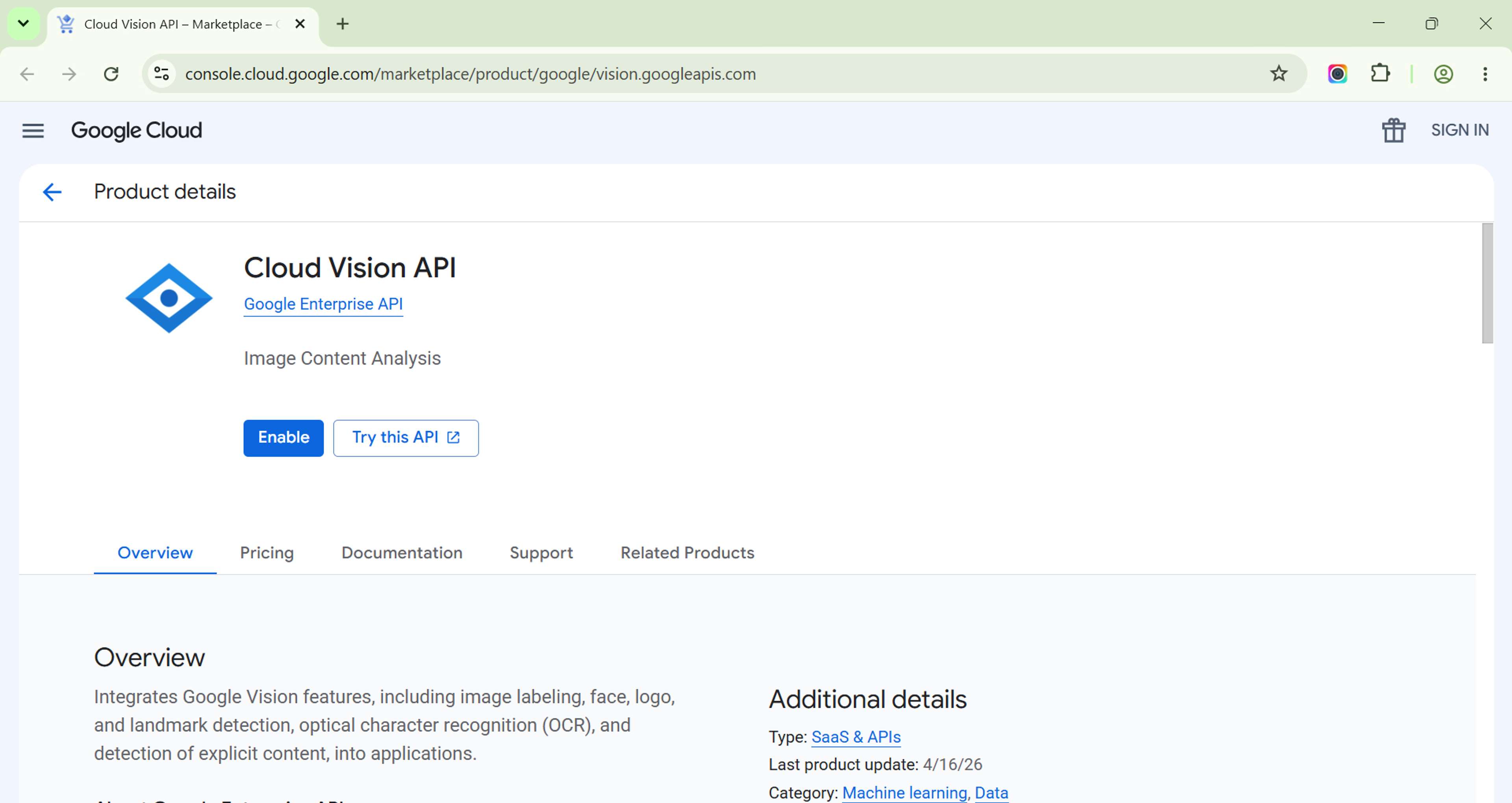
- Cloud-Based OCR (API): Google Cloud Vision, AWS Textract: Cloud APIs from Google, AWS, and Azure provide high-accuracy OCR with scalable pay-per-use pricing. They handle complex layouts and multiple languages.
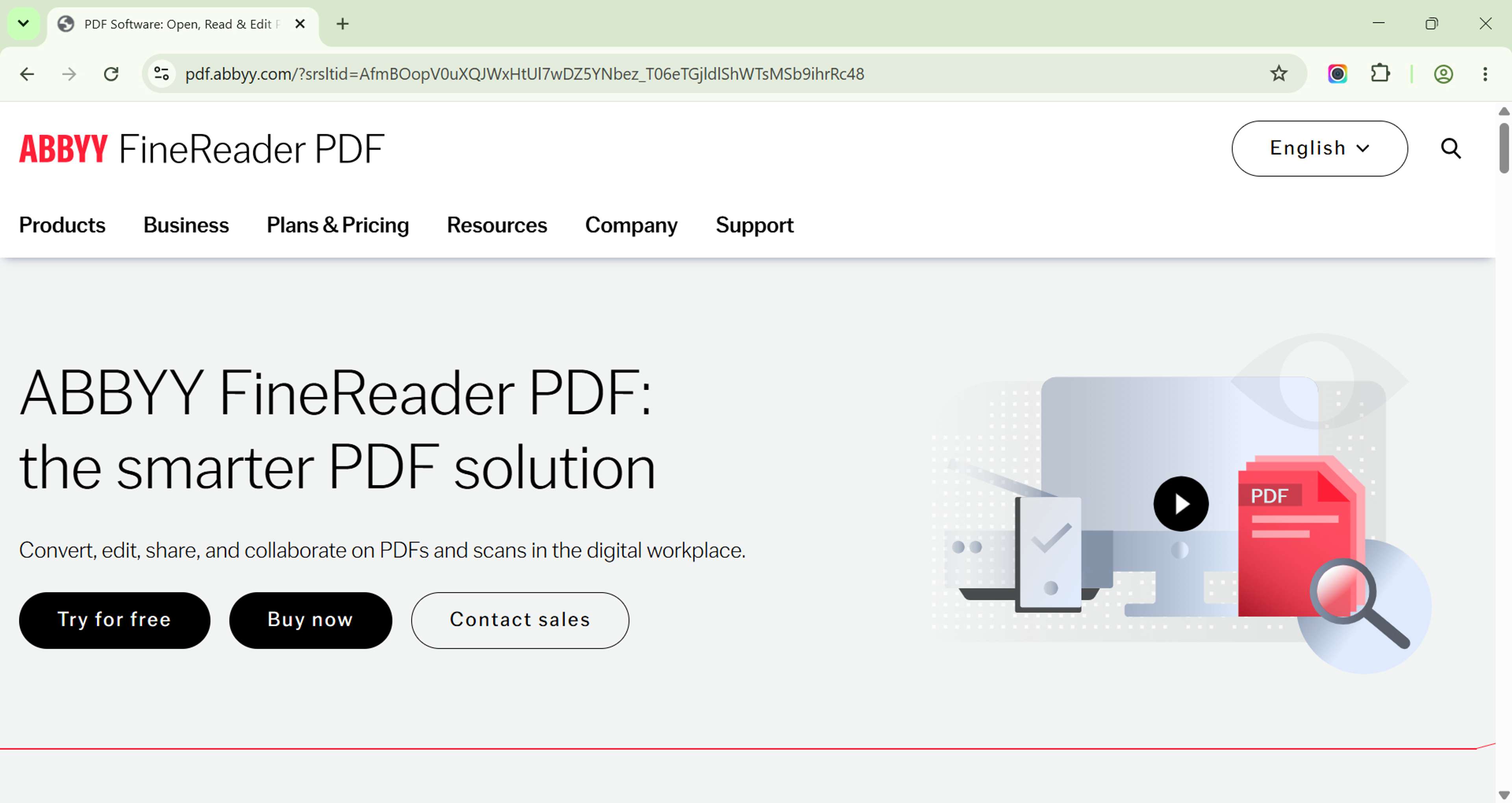
- Desktop OCR: ABBYY FineReader: Desktop software like ABBYY FineReader, Adobe Acrobat, and OmniPage offer full-featured OCR with one-time purchase pricing. Best for high-volume batch processing.
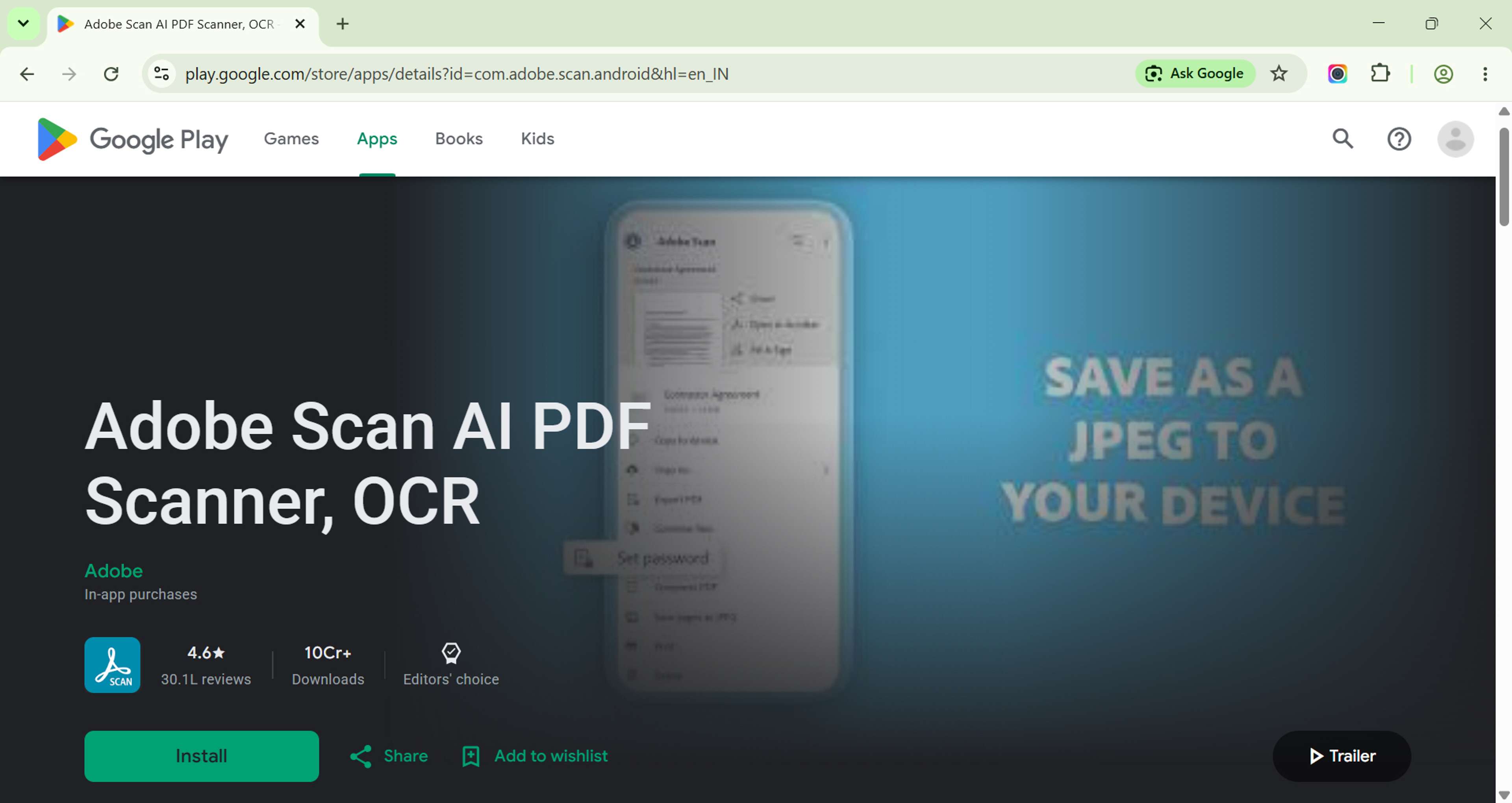
- Mobile OCR: Phone Camera Document Scanning: Adobe Scan, Microsoft Lens, Google Keep, and iPhone Notes use phone cameras for instant document scanning with built-in OCR. Perfect for mobile workers
How to Get Started with OCR
Step-by-Step: Scan a Document and Convert to Text
- Scan at 300 DPI minimum.
- Upload to your OCR tool.
- Select the document language.
- Run OCR.
- Review and correct errors.
- Download the searchable PDF.
Best Practices for High Accuracy
Scan at 300 DPI minimum. Make sure even lighting during scanning. Flatten curled pages before scanning. Use deskew tools to correct rotation before OCR. Always review the output for errors.
Common Mistakes and How to Avoid Them
Low resolution scans produce blurry text that OCR cannot read accurately. Skewed pages cause segmentation errors. Poor lighting creates faded text. Not selecting the correct language leads to recognition failures. Fix these by using 300+ DPI resolution, deskewing before OCR, providing good lighting, and selecting the correct language.
Related Tools
- Make PDF Searchable — Add OCR to PDFs
- Convert PDF to Text — Extract text content
- Protect PDF — Secure comparison documents